Pocket How
Guides

How to have a PDF read aloud on iPhone

Works on iPhone and iPad. Updated .

Short answer

Turn on Speak Screen in Accessibility settings, open the PDF, and swipe down with two fingers from the top of the screen.

Speak Screen

  1. Open Settings, then Accessibility, then Spoken Content.

    1. Settings
    2. Accessibility
    3. Spoken Content
  2. Turn on Speak Screen. Turn on Highlight Content too if you want to follow along.

  3. Open the PDF in Books or Files.

  4. Swipe down with two fingers from the top of the screen. A small controller appears where you can pause and change the speed.

Speak Selection, for one passage

  1. In the same Spoken Content screen, turn on Speak Selection.

  2. Select text in the PDF and tap Speak in the menu.

Where the built-in way stops

Speak Screen reads what is on the screen, so in some apps it stops at the end of a page. A scanned PDF has no text layer and it reads nothing at all.
VoxPage: Read Aloud PDF Reader

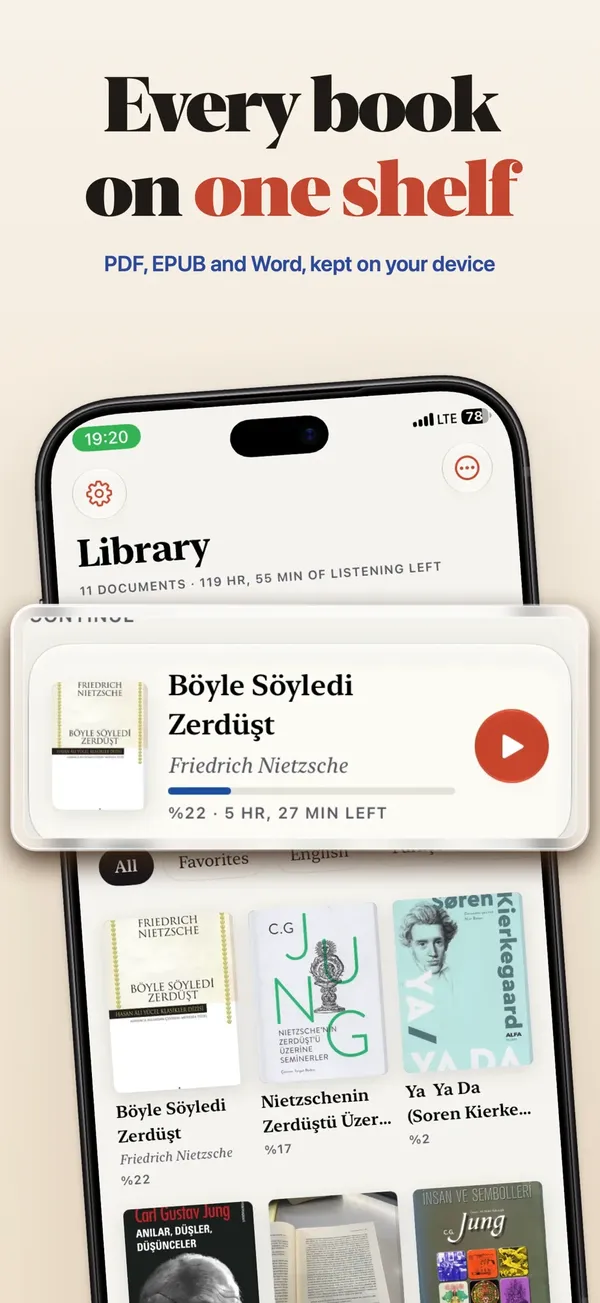
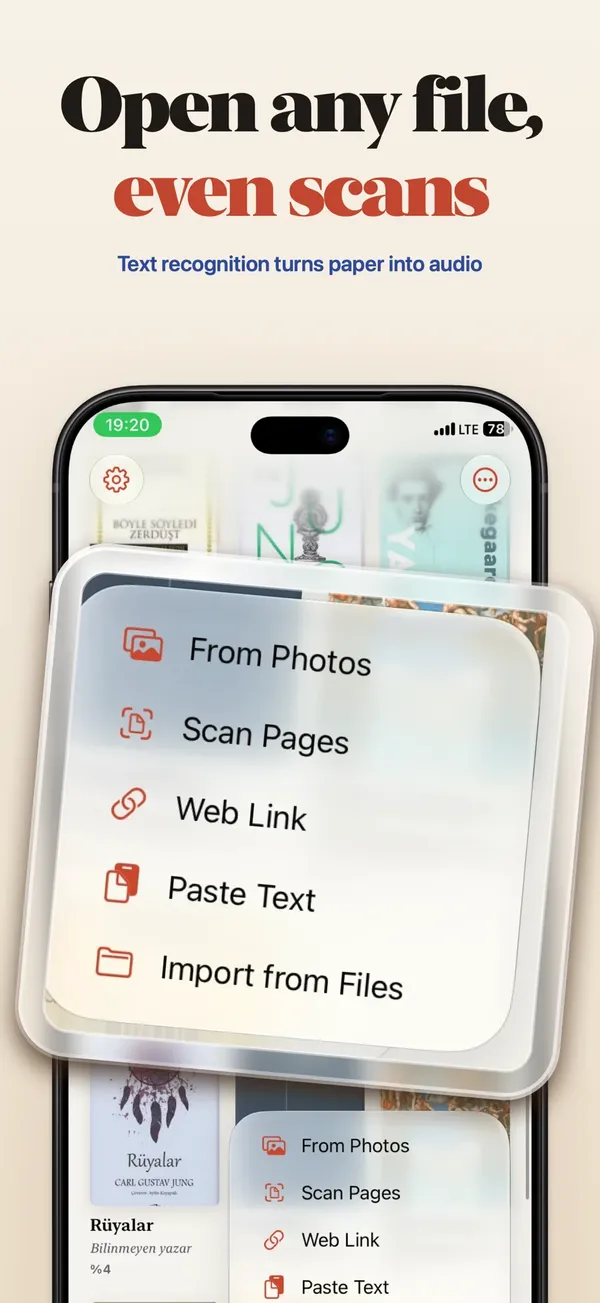
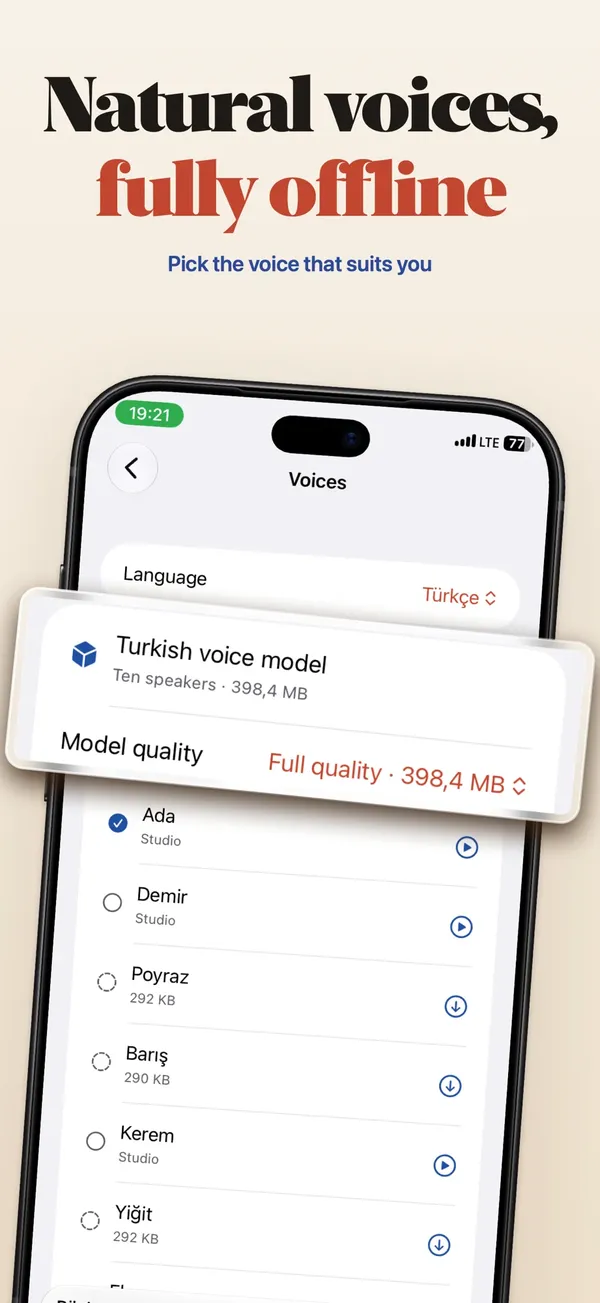
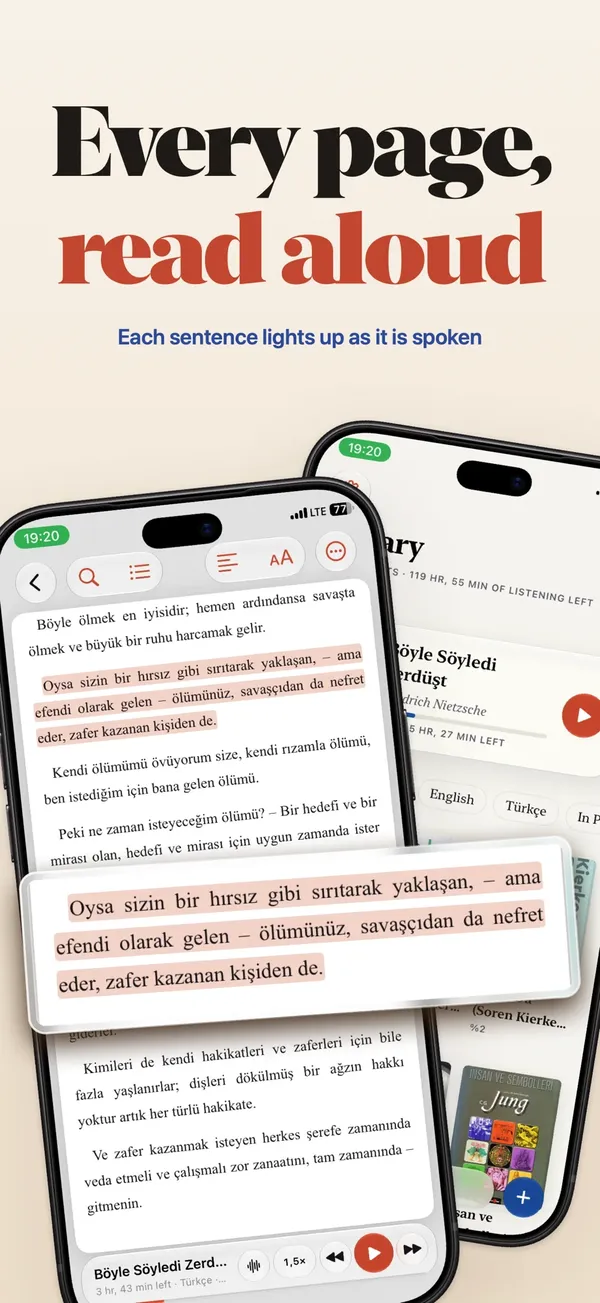
VoxPage reads the whole document, keeps playing with the screen locked, marks each sentence as it goes, and runs text recognition on scanned PDFs first.

Get on the App Store
VoxPage on iPhone, App Store screenshot 1VoxPage on iPhone, App Store screenshot 2VoxPage on iPhone, App Store screenshot 3VoxPage on iPhone, App Store screenshot 4
  • Reads PDF, EPUB and Word files aloud and marks each sentence as it is spoken
  • Scanned PDFs and photos of pages go through on-device text recognition first
  • Keeps playing in the background, with a sleep timer and your place kept

No sign-up. Download from the App Store to see current pricing.

We make VoxPage. That is why it is the app named here.

Questions people also ask

  • Why does my iPhone not read my PDF?

    The PDF is probably a scan, which is a picture of text. It needs text recognition before any reader can speak it.

  • Can I change the voice?

    Yes. In Settings, Accessibility, Spoken Content, Voices, pick a language and download a better voice.

More things your iPhone can do